EA-Datei herunterladen
Download the required .ex5 file from the Free EA page. Do not change its file extension.
MT5-Datenordner öffnen
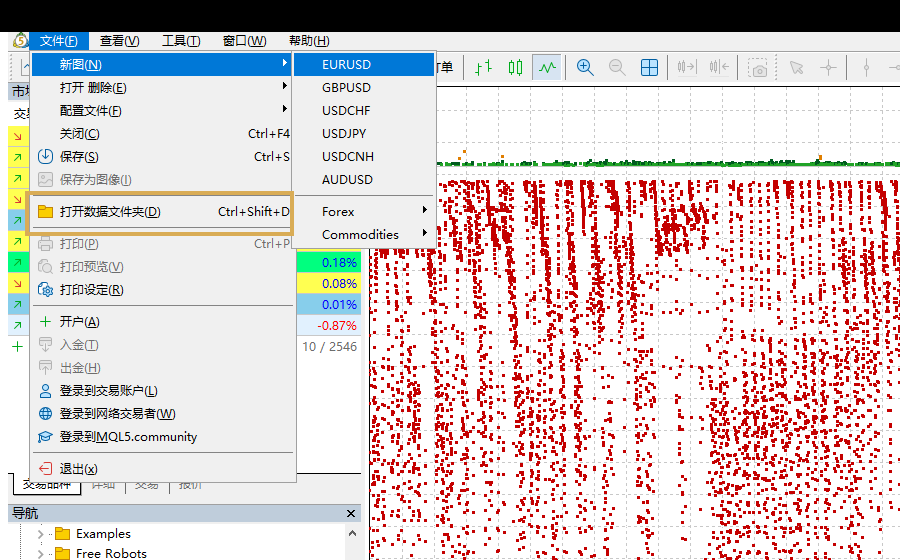
Open MT5 and select “File” → “Open Data Folder” from the top menu.
- Do not look directly for the MT5 installation directory, multiple terminals may use different data directories.
- After entering the data folder, open it in sequence
MQL5andExperts。
EA kopieren und Navigator aktualisieren
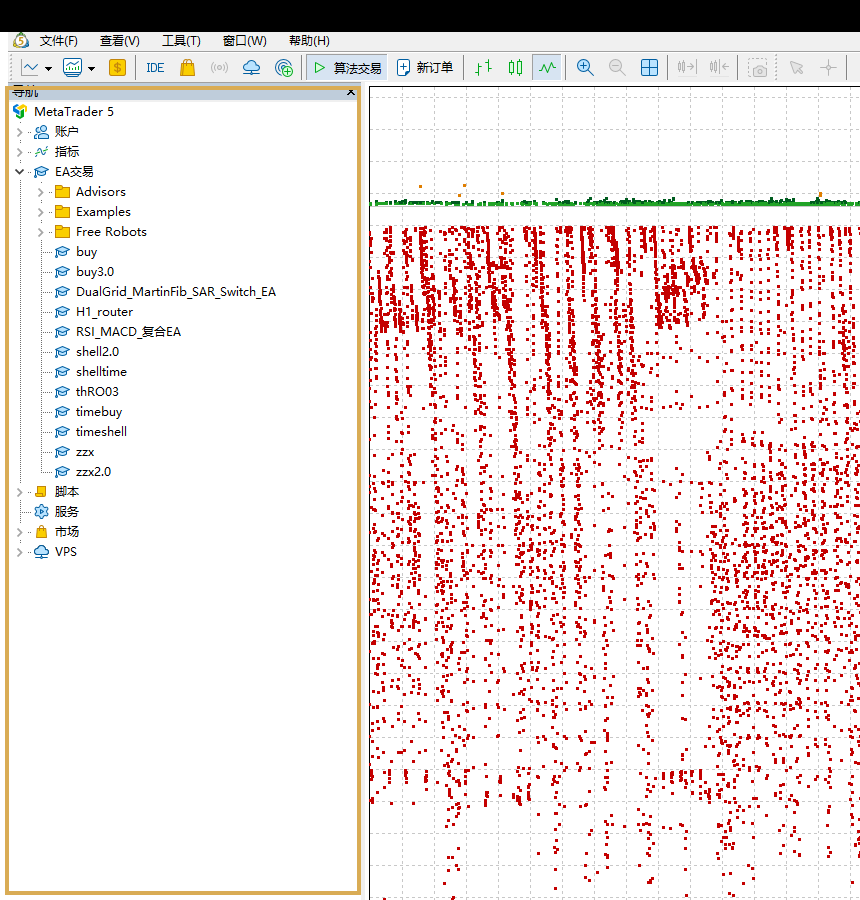
Copy the downloaded .ex5 file into MQL5/Experts.
- To return to MT5, press
Ctrl+NOpen Navigator. - Right-click "EA Trading" or "Intelligent Trading System" and select "Refresh".
- If it still doesn't show up, completely close and restart MT5.
EA zum Chart hinzufügen
Open the target symbol and timeframe, then drag the EA from Navigator onto the chart.
- Confirm the variety name e.g.
XAUUSD、XAUUSDmor other broker suffixes. - Check "Allow algorithmic trading" on the "Common" tab.
- Check Lot Size, Stop Loss, Take Profit, Maximum Position and Magic Number in the "Inputs" tab.
- When running multiple EAs on the same account, each instance should use a different Magic Number.
Automatisierten Handel in MT5 aktivieren
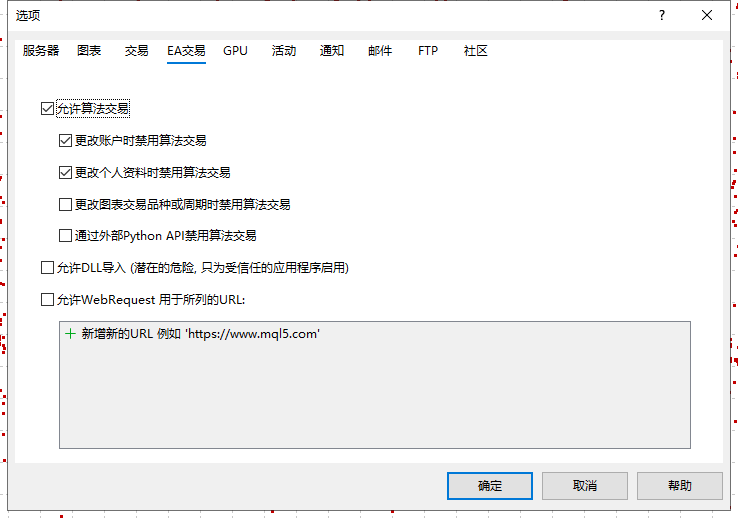
After allowing trading in the EA settings, enable MT5’s global automated-trading switch as well.
- Click the "Algorithmic Trading" or "Algo Trading" button on the toolbar to enable it.
- You can also go to "Tools" → "Options" → "EA Trading" and check "Allow algorithmic trading".
- If the EA requires network authorization or reading interface, add the URL provided by the developer in "Allow WebRequest to access the following URL".
EA-Ausführung prüfen
An EA does not necessarily place an order immediately after loading; it may be waiting for its entry conditions.
according to Ctrl+T Open the toolbox and focus on checking the error messages in the "Experts" and "Log" tabs.
Zuerst Backtest, dann Demokonto
Press Ctrl+R to open Strategy Tester, then select the EA, symbol, timeframe, and test period.
- Use spread and quote data that is as close to the real environment as possible.
- Check maximum drawdowns, margin usage, consecutive losses and extreme market performance.
- After passing the backtest, conduct forward testing on a demo account for at least a period of time.
- Real operation requires keeping MT5, network and computer online; long-term operation is recommended to use VPS.
Fehlerbehebung
If the EA is missing, not trading, or stops running, check the following items in order.
- Navigator without EA:Confirm that the file is located in the data directory of the current terminal, not the software installation directory.
- Unable to load:Confirm the file is for MT5
.ex5, MT4.ex4Not available in MT5. - No automated trading:Check global automated-trading switches, EA common settings and account permissions.
- No order:It's possible that the strategy signal hasn't been met yet, check the "expert" log instead of repeatedly reloading.
- Invalid volume:The lot size does not meet the broker's minimum lot size or step size.
- Market closed:The current product is closed or not available for trading.
- WebRequest error:Include correct HTTPS domain name in MT5 options.