Download the EA file
Download the required .ex5 file from the Free EA page. Do not change its file extension.
Open the MT5 data directory
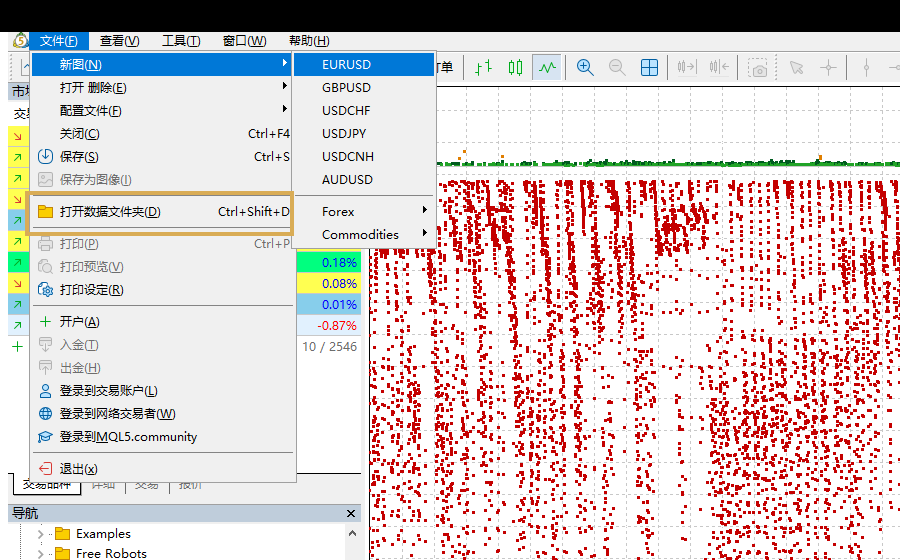
Open MT5 and select “File” → “Open Data Folder” from the top menu.
- Do not look directly for the MT5 installation directory, multiple terminals may use different data directories.
- After entering the data folder, open it in sequence
MQL5andExperts。
Copy the EA and refresh Navigator
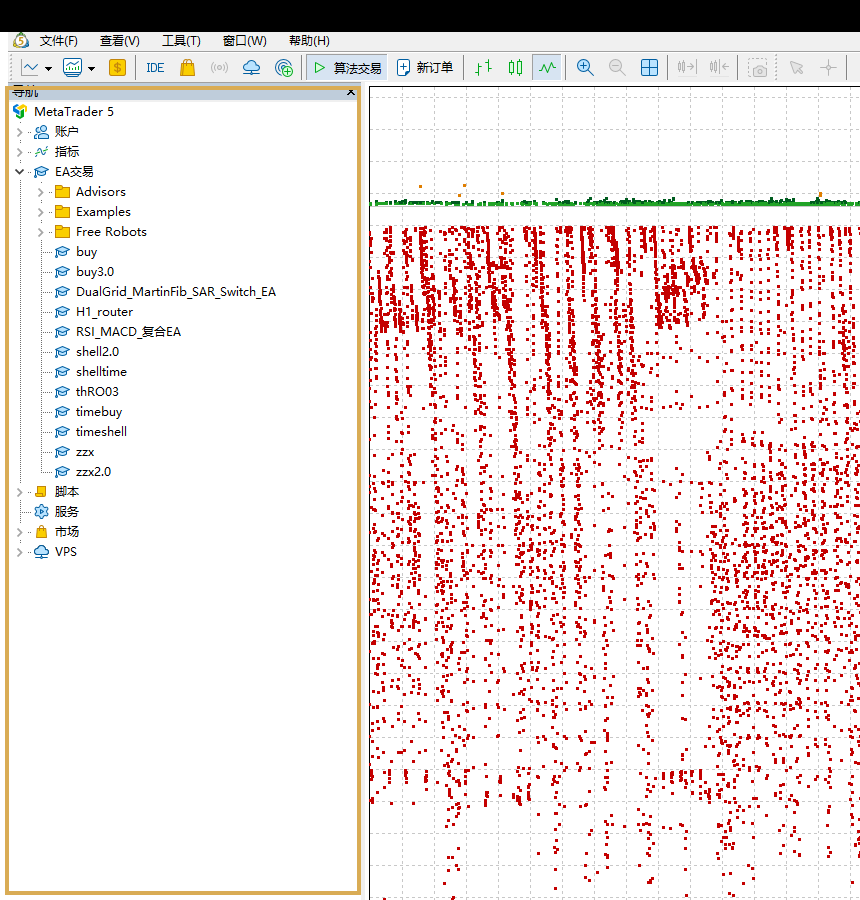
Copy the downloaded .ex5 file into MQL5/Experts.
- To return to MT5, press
Ctrl+NOpen Navigator. - Right-click "EA Trading" or "Intelligent Trading System" and select "Refresh".
- If it still doesn't show up, completely close and restart MT5.
Add EA to chart
Open the target symbol and timeframe, then drag the EA from Navigator onto the chart.
- Confirm the variety name e.g.
XAUUSD、XAUUSDmor other broker suffixes. - Check "Allow algorithmic trading" on the "Common" tab.
- Check Lot Size, Stop Loss, Take Profit, Maximum Position and Magic Number in the "Inputs" tab.
- When running multiple EAs on the same account, each instance should use a different Magic Number.
Enable automated trading in MT5
After allowing trading in the EA settings, enable MT5’s global automated-trading switch as well.
- Click the "Algorithmic Trading" or "Algo Trading" button on the toolbar to enable it.
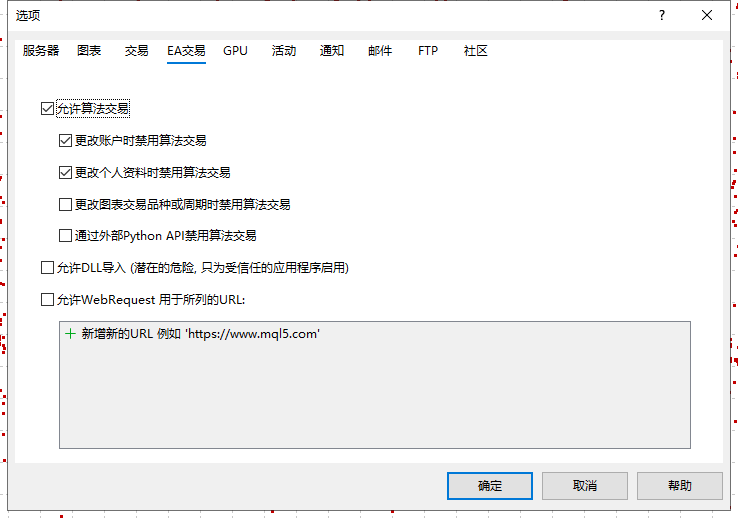
- You can also go to "Tools" → "Options" → "EA Trading" and check "Allow algorithmic trading".
- If the EA requires network authorization or reading interface, add the URL provided by the developer in "Allow WebRequest to access the following URL".
Confirm that the EA is running
An EA does not necessarily place an order immediately after loading; it may be waiting for its entry conditions.
according to Ctrl+T Open the toolbox and focus on checking the error messages in the "Experts" and "Log" tabs.
Backtest first, then use a demo account
Press Ctrl+R to open Strategy Tester, then select the EA, symbol, timeframe, and test period.
- Use spread and quote data that is as close to the real environment as possible.
- Check maximum drawdowns, margin usage, consecutive losses and extreme market performance.
- After passing the backtest, conduct forward testing on a demo account for at least a period of time.
- Real operation requires keeping MT5, network and computer online; long-term operation is recommended to use VPS.
Troubleshooting
If the EA is missing, not trading, or stops running, check the following items in order.
- Navigator without EA:Confirm that the file is located in the data directory of the current terminal, not the software installation directory.
- Unable to load:Confirm the file is for MT5
.ex5, MT4.ex4Not available in MT5. - No automated trading:Check global automated-trading switches, EA common settings and account permissions.
- No order:It's possible that the strategy signal hasn't been met yet, check the "expert" log instead of repeatedly reloading.
- Invalid volume:The lot size does not meet the broker's minimum lot size or step size.
- Market closed:The current product is closed or not available for trading.
- WebRequest error:Include correct HTTPS domain name in MT5 options.